
Try a Books invoice draft with fictional data
Create a Books invoice draft with fictional data, inspect its details and understand what the preview does before arranging your own installation.
A useful software preview gives you something specific to check. With a Books invoice draft, you can enter a fictional record, connect it to a demo client and inspect the details together. That is a practical way to explore the document workspace before discussing a setup for your business.
This walkthrough uses invented details throughout. The example amount belongs to a demonstration document. It is not the price of Books, a customer transaction or a payment.
1. Open the Books preview
Open the Books product page and scroll to the interactive preview. JavaScript must be enabled for the preview to load.
Choose Invoices. Books starts with clearly labelled fictional records, so you can inspect an existing example before adding your own. Use invented information rather than private customer details for this exercise.
2. Create one fictional invoice draft
Open Create an invoice draft. Enter the following example:
| Field | Fictional input |
|---|---|
| Record label | Fictional leaflet layout |
| Amount (EUR) | 165.00 |
| Reference (optional) | LOCAL-DEMO-012 |
| Client (optional) | Demo Studio |
| Description (optional) | Fictional layout exercise for the Books preview. |
Demo Studio is an existing fictional client in the preview. Selecting it lets you check how a document refers to a client without creating a real customer record.
Select Add draft. The preview adds the record, selects it for inspection and clears the entry fields. The new record starts with Draft status. For this exercise, the amount is a single entered figure; these steps do not build a line-item breakdown or calculate tax.
3. Inspect the Books invoice draft
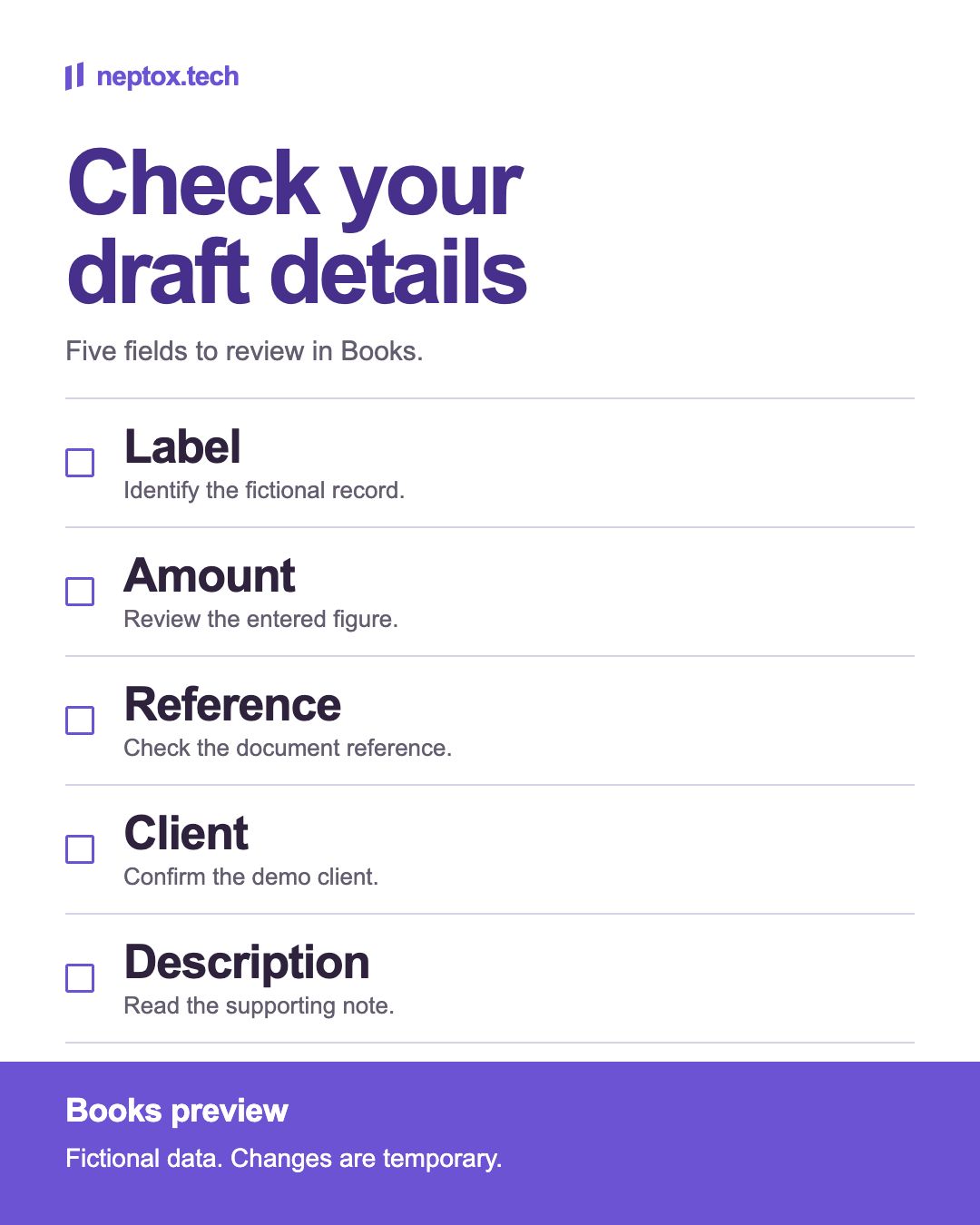
Look at the selected document and compare it with your input. Check the label, the €165.00 example amount, reference, client and description. The document register also shows the record and its status.
This comparison is the useful part of the exercise: you can see whether the details you entered remain understandable when displayed together. For example, the reference identifies this fictional document, while Demo Studio identifies the fictional client it is linked to.
If you select another record in the register, its details become the document being inspected. Select your fictional leaflet record again before continuing so you know which status you are changing.
4. Check the status, then reset
Select Mark recorded on your example. The preview changes the selected record's status to Recorded, and the button becomes Return to draft. You can use that button to switch the record back.
These controls change demonstration data. They do not send an invoice, process a payment or handle tax. Recorded should be read as a status inside this preview, with no claim about delivery or money received.
Select Reset preview to restore the fictional examples. Your added draft is temporary and will disappear. This walkthrough does not demonstrate saving production records or exporting an issued invoice.
5. Understand the installation offer
The public Books offer includes your own installation, configured with your business details, logo and colours, plus a setup session for your team. The listed modules cover quotes, invoices, expense records, clients and exports for your accountant. This walkthrough only exercises the preview's draft workflow.
Hosting and ongoing support are quoted separately. Any initial client import needs to be agreed during setup; new modules fall outside the listed offer. Your accountant still handles tax filing. The terms of sale explain the app licence and the requirement to agree extra work before it starts.